


AI-Generated Slides: 6 Common Mistakes and How to Fix Them in PowerPoint
If you create your presentations with AI tools like Copilot, Claude or Gemini, you’ve probably run into some problems with the slides. Here’s what the typical problems are and how to fix them.
In short: The most common mistakes in AI-generated slides are text inserted as an image, a background pasted outside the slide master, fonts that are too small, unusual fonts, an unusable template, and photos you have no rights to. You can fix each one in PowerPoint in a few minutes. Below, I show you how.
Here are the six mistakes I see most often in slides generated with AI tools like Copilot, Claude, ChatGPT or Gemini.
Mistake 1: Text and boxes inserted as an image
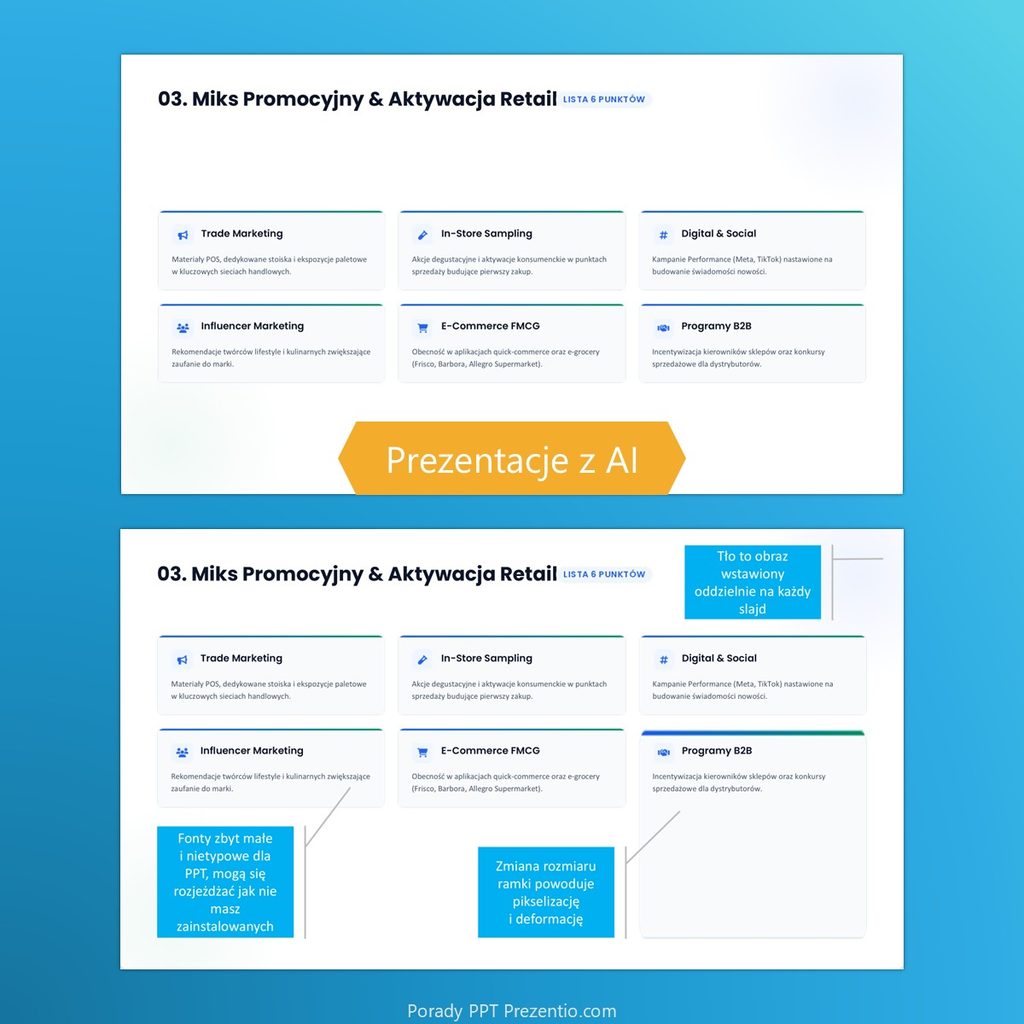
Boxes and text are inserted as an image, not as a shape. You can’t edit them, and when you resize them, you see pixels and distortion (common with Gemini).
Quick fix: click the element and look at the ribbon. If you see the Picture Format tab instead of Shape Format, it’s an image. In that case, it’s better to insert your own standard PowerPoint shape, e.g. a rounded rectangle, than to fight with the picture.
Mistake 2: The background pasted onto each slide separately
The same background is pasted onto every slide separately, instead of into the slide master. It’s easy to grab it with the mouse and move it by accident, and the file gets bigger than it needs to be.
Quick fix: View > Slide Master. You set the background once, it appears on all slides, and nobody can move it by accident. Make sure you put the background on the first (top) slide of the master – then every layout in the template inherits it.
Mistake 3: Font size too small
These slides often use a font that’s too small by default, e.g. just 9 points. That’s fine for reading on your own screen, but in a bigger meeting room nobody will be able to read it.
Quick fix: select the text and press Ctrl + ] to make it bigger. It works on several text boxes at once too. For slides you present in a meeting, I’d stay at 18 points or above.
Mistake 4: Unusual fonts on the slide
The fonts used aren’t standard PowerPoint fonts. Even if you have them on your computer, the layout can fall apart once you send the file to a colleague.
Quick fix: Home / Replace / Replace Fonts. Here you can swap every instance of one typeface for another, e.g. Poppins for Aptos. The change applies to the whole presentation.
Does it still make sense to learn slide design? Why I think it does – I explain in the post Learning Slide Design in the AI Era.
Mistake 5: A template you can’t actually use
The template is unusable (placeholders take up only 2/3 of the width), or it’s completely empty with default PowerPoint colours.
Quick fix: Select all slides, copy them and paste them into your company template. You may need to re-select some layouts from your template via Home / Layout.
Looking for a good template, or add-ons for your current one? Check our shop / slide library.
Mistake 6: Photos you have no rights to
And the cherry on top: a photo (AI even gave the source) taken from someone’s company website. Without asking about copyright. If you use it, you’re the one responsible for illegal use.
Quick fix: Check where the photos come from. If you don’t have the rights to a photo, replace it with one from your own library or PowerPoint’s stock images. Right-click, choose Change Picture / This Device or From Stock Images.
How to make your slides not look AI-generated?
If you don’t want your presentations to look AI-generated, change a few things on the slide.
- Remove the shadows under boxes and other elements. AI tools usually add a typical website-style drop shadow.
- Spaced-out letters in titles or subtitles are another typical AI touch. If it isn’t a standard element of your company template, set the character spacing back to normal.
- No diagrams – everything is put into boxes instead, often with a coloured vertical bar on the side. Here, you can put the text into SmartArt and choose a diagram that fits the logic and the topic.
And finally, something not about design, but just as important: check the content. Is it logical? Is it true? In the end, you’re the one responsible for your presentation.
Want to learn more about creating good presentations with AI tools – and what you can really do with them? Join our Visual AI training. We run open groups and private groups for teams from one company.
Want updates on what’s new in Microsoft PowerPoint, including Copilot? Sign up for the Prezentio PPT Tips newsletter.
Izabela & Peter
Slide designers and trainers