


PowerPoint 2026: AI Image Editing and Language Tools Useful for Corporate Managers
As we are every day slide designers, we continuously test new improvements in Microsoft Office and various AI tools. Our goal is to check what works in and share it to help you create slides faster and make them look professional.
Recently, we’ve been spending quite a bit of time exploring MS Copilot – testing what works and what doesn’t when creating especially corporate slides. But on top of that, Microsoft has introduced two “quiet” revolutions in PowerPoint that every MS Office 365 user should know about. Here they are.
BTW, if you work with MS Copilot, you should know that a lot has improved here in recent month, too. We talk more about it in our AI tools for PowerPoint training.
1. AI Image Editor – Remove and Move Objects Without Photoshop
PowerPoint is gradually becoming a much more autonomous tool for image editing. Beyond the standard features like cropping, recoloring, or background removal – which have been around in Office for years (but still people don’t know about them), there’s now a new addition: an AI-powered image editor, similar in concept to tools like Adobe Firefly.
In PowerPoint 365, under “Picture Format” → “Edit Image”, you can now move or remove specific elements within a picture. For example, you can easily remove a building or a person, or reposition them. You can also modify the background of the image.
Take a look at my example below, where I changed the position of the person:
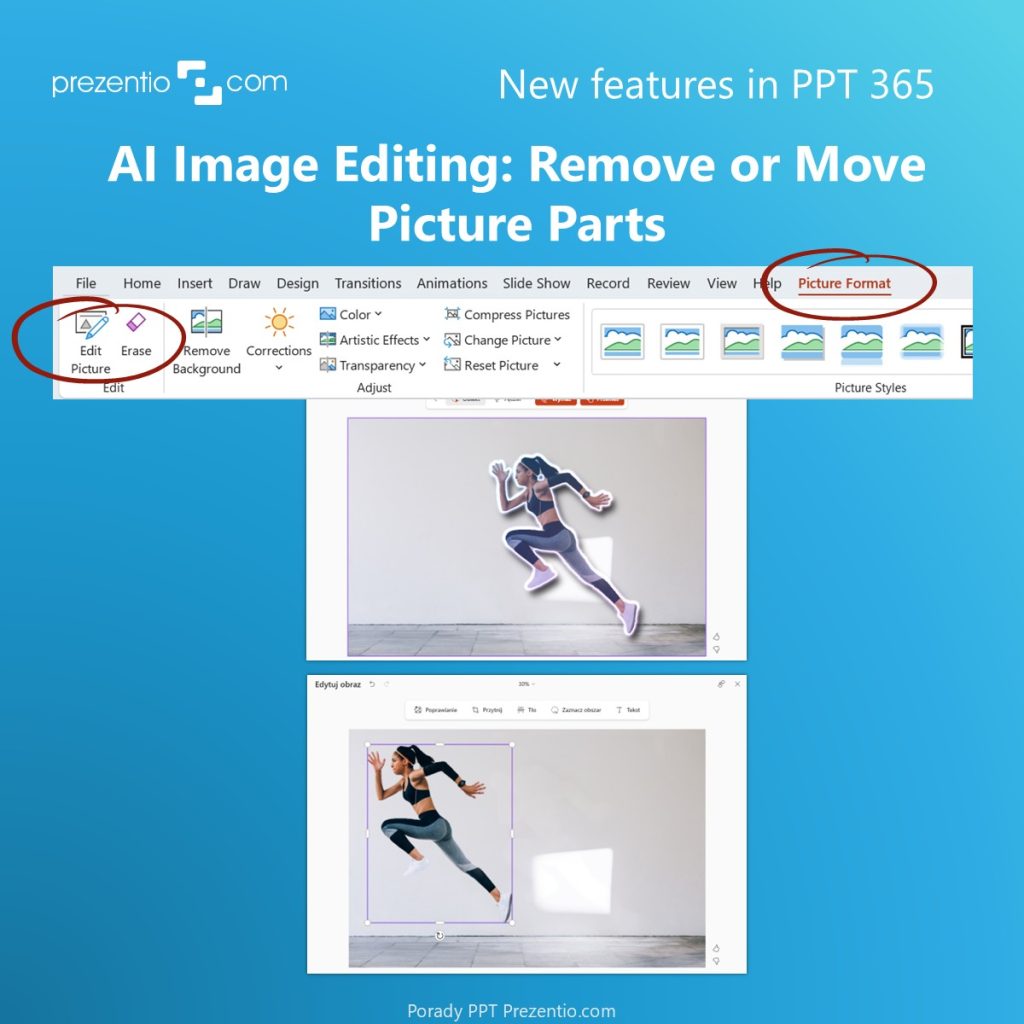
Key takeaways about the new image editor:
- It enables quick image retouching without leaving PowerPoint.
- Great when you need to adapt an image to your slide. For example, to create space for a headline or fit a different layout.
- Runs on cloud-based AI algorithms (so it requires a permanent internet connection. It won’t work offline).
- Currently available only in MS Office 365 (as of May 2026).
This improvement clearly shows that the line between PowerPoint – as a basic office tool – and professional design software (like Photoshop) is becoming increasingly blurred.
2. Global Language Setting. No More Red Underlines for “Wrong” English Words
Until recently, changing the proofing language across an entire presentation was… a real pain. Maybe you’ve experienced this: you’re preparing a presentation in English but typing on a Polish or French keyboard – and PowerPoint happily underlines all your English words as mistakes. To fix this consistently, we used to rely on our own VBA script. No more :).
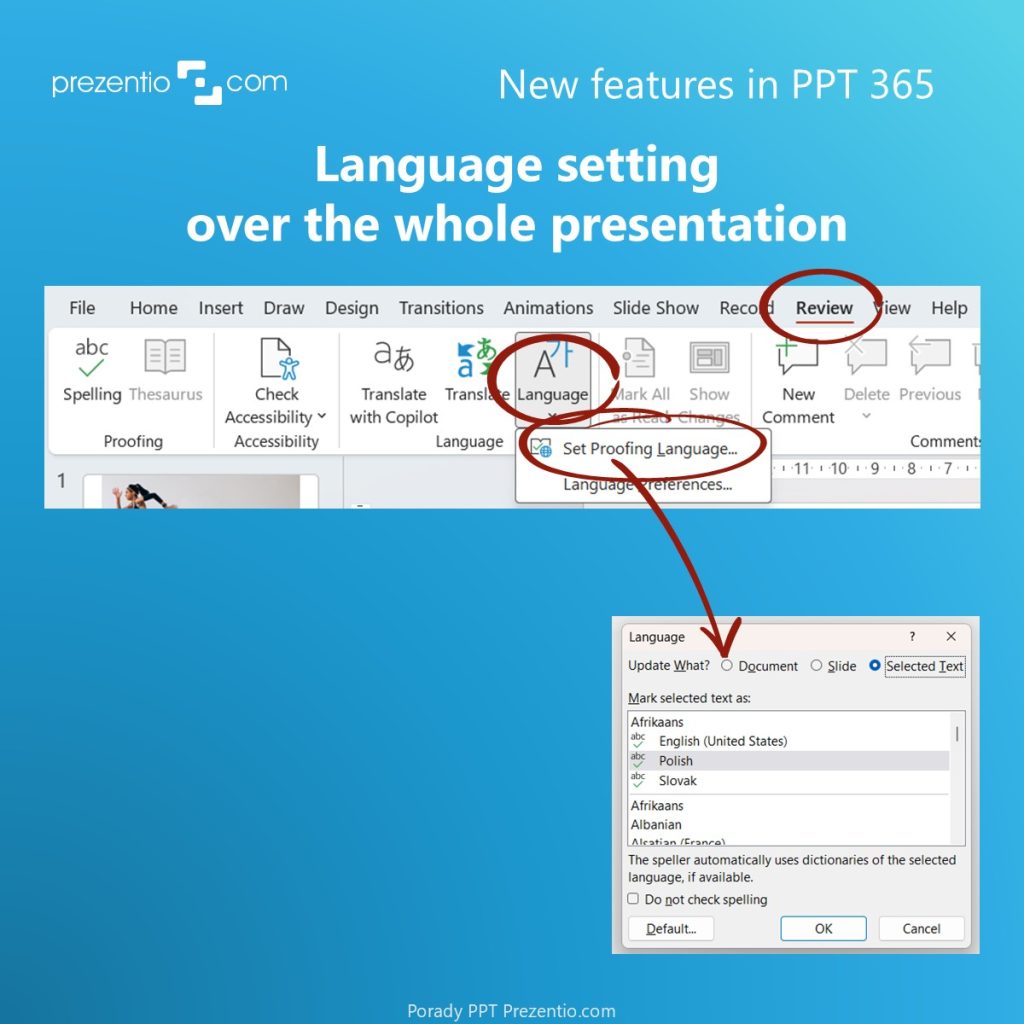
What’s changed? In the new version of PowerPoint 365, this capability is now built-in. With just one click, you can change the proofing language for the entire document, a single slide, or only selected text. It’s a simple but powerful time-saver, especially when preparing materials for international clients or working in multinational corporate company.
You can find this feature in the Review tab. See the example below:
Prezentio tip: If you use specific proper names – like surnames or product names – it’s worth adding them to your dictionary. Just right-click the underlined word, go to “Spelling”, expand the options, and add it to your dictionary. This updated dictionary will then be applied across all Office documents on your device.
If your company works across multiple language versions, this feature will help reduce the risk of typos and inconsistencies in your final files.
What These Updates Mean for Your Slide Work
PowerPoint 365 is currently going through its biggest transformation in decades. Updates like MS Copilot in PowerPoint, built-in language proofing improvements, and AI-powered image editing are significantly reducing the time needed to prepare presentations, taking away need to use other external tools. That means you can spend more time on what really matters – that is your content and the logic behind your story, instead of technical fixes.
We’ll continue testing upcoming Microsoft 365 updates. If you’d like to stay up to date and get inspiration on how to visually present business topics, subscribe to the Prezentio PPT Tips newsletter. We share updates every few weeks, along with real slide makeover examples.
Izabela,
Slide designer, Visual communication trainer, Art Director & Founder of Prezentio