


Interactive Slides in PowerPoint with Copilot: 5 modes examples
Interactive slides are a new PowerPoint feature for those with a Microsoft 365 Copilot licence. You might not see it yet, but it should show up over time.
It’s good to know what to expect and whether it will be useful for you. Below, I explain what this new feature does, what it’s good for, and show a few examples of business use.
In short: Interactive slides is a new Copilot feature in PowerPoint. From a single prompt, it creates a slide where you click tiles, buttons or timeline points, and the content changes in Slide Show mode. You can choose from 5 modes: Executive Summary, Dashboard, Timeline, Comparison and Custom. The first version of a slide takes about 7–9 minutes.
Status as of October 2026: the feature requires a Microsoft 365 Copilot licence and isn’t visible for everyone yet.
I cover more on new AI tools like Copilot – including the pros and cons of interactive slides – in our Visual AI + PowerPoint training. Check the dates – if the topic interests you, you’re very welcome to join.
As a slide designer and an honest PowerPoint fan, I keep an eye on what Microsoft is working on and judge what could be practical for my clients. That’s why at Prezentio we’re testing Copilot in PowerPoint a lot right now – including the freshly added “Interactive Slide” feature.
What this new feature does: Copilot, the AI assistant in PowerPoint, has a new built-in skill that creates an interactive visual on your slide. For example, it can:
- Add a graphic with buttons that change the content on the slide.
- Create expandable tabs that reveal details.
- Add interactions to charts, e.g. a click changes the range of data shown.
Where to find Interactive Slides in PowerPoint
The Interactive Slide button appeared in my ribbon on the Home tab, on the left – next to New Slide and the fairly new “New slide with Copilot” button. You’ll find it on the Insert tab too:
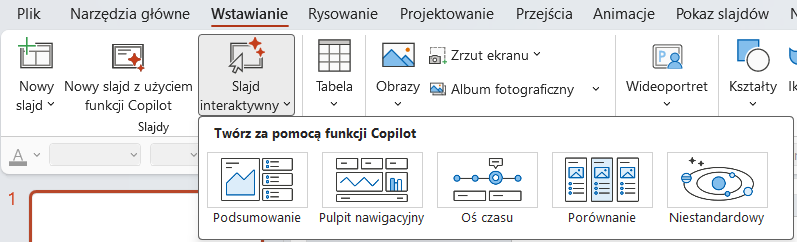
In practice, these buttons open Copilot chat with the interactive slide skill – a new addition to Copilot’s predefined skills (in the chat, it’s called “Create interactive slide”).
This feature requires a Microsoft 365 Copilot licence. With company licences, your admin may also need to enable it.
Even if it’s not active for you yet, it’s worth knowing what it can do – so you can decide whether the Copilot licence is worth buying.
Interactive Slide modes and how you can use them
Right now, the feature offers these modes for creating interactive slides:
| Mode | What it does | When to use it |
|---|---|---|
| Executive Summary | Clickable tiles that reveal the details of each area | At the start or end of your talk |
| Dashboard | Category buttons or a map change the chart or KPI value | Comparing data, e.g. several countries |
| Timeline | Clicking a stage shows its details | Campaign schedule, project plan |
| Comparison | Switchable columns describing each option | Choosing between options or offers |
| Custom | Empty prompt with the @interactive-slide skill | Interactive map, simple calculator |
When you click one, PowerPoint opens Copilot Chat with a pre-filled prompt that calls the interactive slide “skill”. You can add to the prompt and specify exactly what you want to create.
So how do these modes differ, and what does each one do?
Executive Summary interactive slide
Run this one and Copilot creates a slide with an interactive graphic: a tile for each area that you click to reveal its details. Copilot pulls these topics from the presentation you have open. But you can tell it in the prompt which areas to pick.
Here’s a screenshot of an executive summary slide I created while testing:
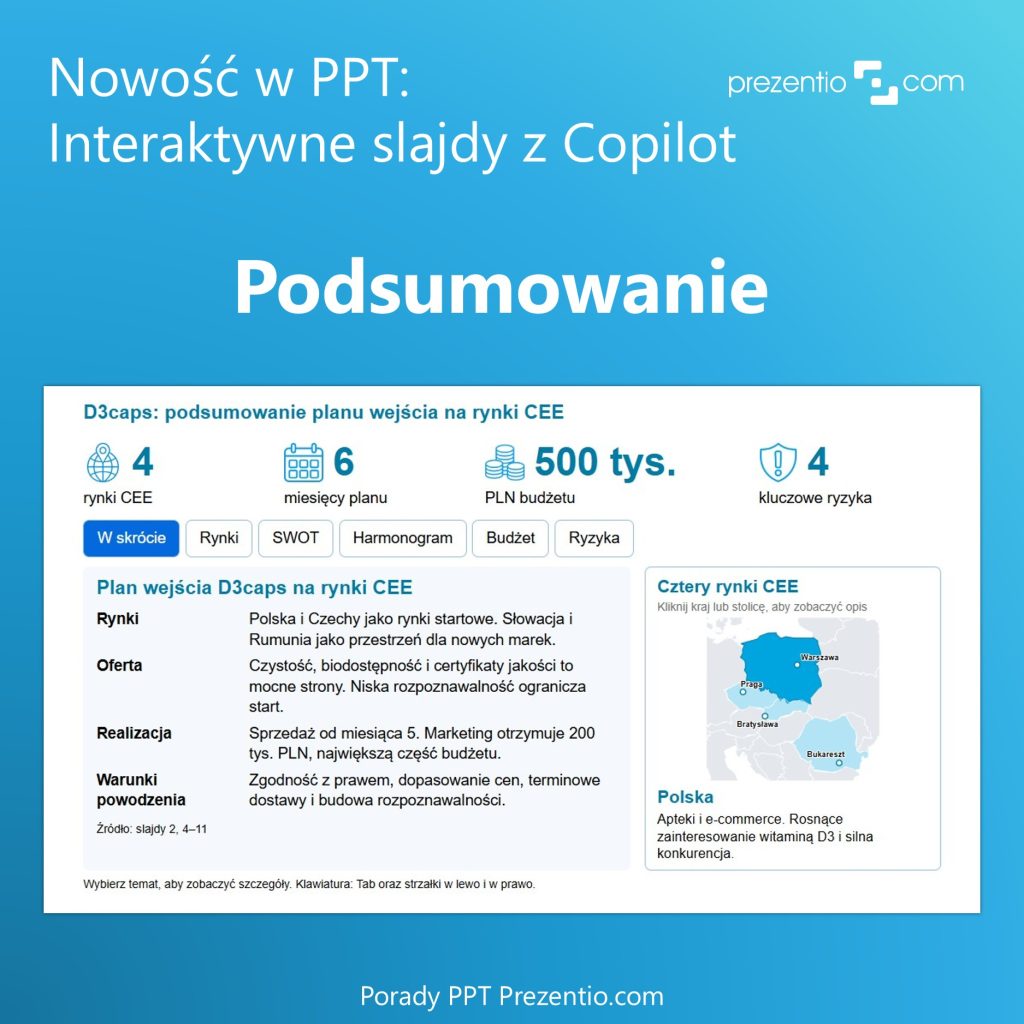
Build this slide once your content is complete. Add it at the end to present the key takeaways, or at the start as an intro before you show the details. In Slide Show mode, you click through the tabs one by one to reveal the details.
Dashboard interactive slide
This mode creates a slide similar to the one above, but better suited to filtering and showing data. By default, it uses data from the current presentation, but you can specify in the prompt which data it should build the dashboard from.
Below is a screenshot from my PowerPoint – the result of my next test. When I click the data category buttons or the map, the chart or KPI value updates.

This slide shows data for 4 countries by GDP, population and age. When I click the tabs in PowerPoint, the chart appears with an animation and the matching values.
Timeline interactive slide
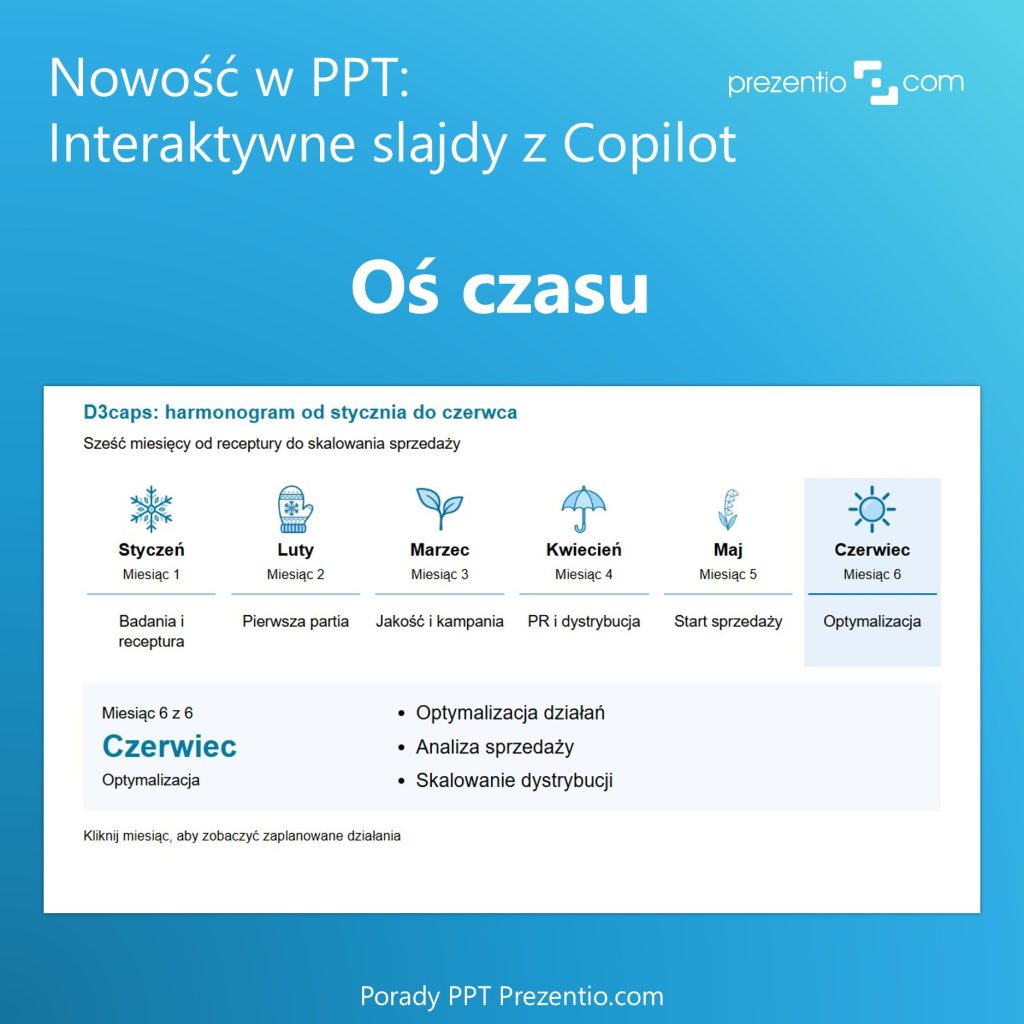
This mode generates an interactive list of events on an axis. Click an event and it shows the details of that stage.
Here’s my example: a timeline with tabs for 6 months of a sales campaign schedule. Clicking a month’s icon expands the tasks for that month.
Prefer a classic timeline, without Copilot? You’ll find 7 ready-to-download examples in the article Timeline in PowerPoint: how to make one + 7 examples.
Comparison interactive slide
Pick this mode, run the suggested prompt, and Copilot creates a slide – typically with columns of content you switch between to show the details of the selected option.
The content is based on your other slides, unless you provide different content in the prompt.
Custom mode for creating an interactive slide
Here, PowerPoint gives you a clean prompt with just the @interactive-slide skill call and no extra spec. It’s up to you to describe what you want to visualise. For example, you can ask for an interactive map or a simple calculator.
Does your team already work with Microsoft 365 Copilot? We run a private webinar for companies where I show how to use Copilot to create slides you can confidently present to your board.
See webinar details
First impressions of interactive slides
Is this feature useful for business presentations?
Yes, if you present your slides in Slide Show mode. No, if you only create slides to save as PDF or print. If you’re not a fan of animations, this feature may not be for you. But it’s worth at least a try.
How long does it take to create an interactive slide?
The first version of a slide took me about 7–9 minutes. With more complex content, like a map of CEE countries or data from an external source, a few minutes more.
Changes to a finished slide went faster, about 4–5 minutes.
What errors show up in the first versions?
In my first, more general attempts, I got odd gaps in the layout. For example, too much empty space under the data charts.
Copilot also used a different font than the default one in my template. So review every slide before you present.
I described other typical AI slide mistakes and how to fix them in the article AI-generated slides: 6 common mistakes and how to fix them in PowerPoint.
Is it easy to edit these slides?
So-so. You make changes through another prompt, which takes a while, and the result isn’t always exactly what you want. This is where prompt-writing skills come in handy.
Is this the only way to create slides like these?
No. Other methods have existed in PowerPoint for years, just waiting to be used. For example, working with hyperlinks on slides lets you create similar effects – with full control. But it also takes much more time to prepare. I talk more about it in our Visual Slides training.
Will the slide work on a computer without Copilot?
Yes. From what I’ve tested, the interactive content stays clickable on another computer with PowerPoint, in Slide Show mode. But you can’t edit it there. For that, you need PowerPoint with a Microsoft 365 Copilot licence.
What if you are presenting in a Microsoft Teams meeting? Then you can share the slides through PowerPoint Live in Teams and your attendees should be able to click through the interactive content themselves on their own screens.
Since this is still a recent addition to PowerPoint, I’d expect Microsoft to polish it further. Maybe new types of interactive visuals will be added. Worth keeping an eye on.
Izabela
Slide designer and slide design trainer
PS. Want updates on what’s new in Microsoft PowerPoint, including Copilot? Sign up for the Prezentio PPT Tips newsletter.