


PowerPoint Slide Format & Size Guide: 16:9, 4:3, A4 (with Dimensions)
Do you have a presentation in classical 4:3 format? Are you considering whether to change it to widescreen format (16:9)? Or maybe you are creating a presentation offer that you want to print on A4 paper sheets? Let me show you how and when change slide proportions and how to use untypical presentation formats.
Summary for busy people:
The two default PowerPoint slide sizes are Widescreen 16:9 (13.33 × 7.5 inches / 33.87 × 19.05 cm) and Standard 4:3 (10 × 7.5 inches / 25.4 × 19.05 cm). PowerPoint also lets you set custom dimensions for A4 paper, 9:16 vertical slides, or any size you need. Below you’ll find the exact dimensions for each format, when to use which, and how to change the slide format without breaking your existing content.
Dimensions Table of PowerPoint slides
You can set various formats of the PowerPoint slide. Below are typical dimensions of most popular slide formats in various units.
| Slide Format | Dimension in Inches | Dimension in Centimeters | Dimension in Pixels (96 DPI) |
|---|---|---|---|
| Widescreen slide 16:9 | 13.33 × 7.5 | 33.87 × 19.05 | 1280 × 720 |
| On-screen Show 16:9 | 10 × 5.625 | 25.4 × 14.29 | 960 × 540 |
| Standard slide 4:3 | 10 × 7.5 | 25.4 × 19.05 | 960 × 720 |
| A4 paper (landscape) | 11.69 × 8.27 | 29.7 × 21.0 | 1122 × 794 |
| Vertical 9:16 | 7.5 × 13.33 | 19.05 × 33.87 | 720 × 1280 |
As a professional slide designer I use PowerPoint in various formats. Pretty often I help clients to update their PowerPoint templates, transitioning from older classical 4:3 proportions to 16:9 format. This widescreen format is new standard and many companies don’t use standard 4:3 anymore, or use both versions.
However changing format causes often problems, elements relocate, or suddenly appear bigger. Therefore it is good to know what dimensions your presentation contains. I recommend to stick to one of the standard dimensions, don’t use special custom formats unless you have a special reason for that. Let’s explore the options of standard formats.
What are the dimensions of a 16:9 PowerPoint slide?
A 16:9 widescreen PowerPoint slide is 33,87 cm × 19,05 cm (13.33 × 7.5 inches) . Exported at the default 96 DPI, that’s 1280 × 720 pixels; exported at HD resolution, it’s 1920 × 1080 pixels.
This is the default size for any new presentation in PowerPoint 2013 and later, and it’s the format you should use for modern laptop screens, HD projectors, TV monitors, and online video platforms like YouTube or Vimeo.
PowerPoint actually offers two 16:9 variants. The default Widescreen (16:9) at 13.33 × 7.5 inches gives you more slide surface area and is the right choice for almost all presentations. The older On-screen Show (16:9) at 10 × 5.625 inches has the same aspect ratio but a smaller canvas — you’ll only encounter it in older templates.
What is the size of a 4:3 PowerPoint slide?
A 4:3 standard PowerPoint slide is 25,4 cm × 19,05 cm (10 × 7.5 inches), or 960 × 720 pixels at 96 DPI.
4:3 was the default in PowerPoint 2010 and earlier, and we still see it around in some older presentations. But it still has practical uses today:
- Older projectors in many conference rooms, hotels, and smaller venues still project natively in 4:3.
- Printing on A4 or Letter paper — 4:3 fits a printed page much better than 16:9, which leaves wide white margins above and below.
- iPads (older models) display in 4:3 natively.
If you know your slides will be printed or shown on a 4:3 projector, set the format to 4:3 before you start adding content — converting later can stretch logos and distort images.
What is A4 size in PowerPoint?
A4 in PowerPoint is 29,7 cm × 21.0 cm (11.69 × 8.27 inches) in landscape orientation, or 8.27 × 11.69 inches in portrait. This matches the international A4 paper standard.
A4 is useful when you’re using PowerPoint to create something that will be printed or read as a document rather than projected, For example sales offers, one-pagers, training handouts, infographics, leaflets, or report-style decks.
How to set A4 size in MS PowerPoint?
- Go to the Design tab.
- Click Slide Size → Custom Slide Size…
- In the Slides sized for dropdown, select A4 Paper (210 × 297 mm).
- Choose Landscape or Portrait orientation.
- Click OK.
If your deck already has content, PowerPoint will ask whether to Maximize (keep elements at original size, possibly cropping) or Ensure Fit (scale everything down to fit). For most cases, choose Ensure Fit and adjust manually afterwards.
How do I make a vertical (9:16) PowerPoint slide?
A vertical 9:16 PowerPoint slide is 19,05 × 33,87 cm (7.5 × 13.33 inches ), or 1080 × 1920 pixels at HD export resolution. It’s the same aspect ratio as Instagram Reels, TikTok, YouTube Shorts, and most smartphone screens in portrait mode.
To create a vertical 9:16 slide:
- Open the Design tab.
- Click Slide Size → Custom Slide Size…
- Set Width to 7.5 inches and Height to 13.33 inches (or 19,05 cm and 33,87 cm).
- Click OK.
Use vertical 9:16 when you’re designing slides that will be exported as social media videos, displayed on digital signage in portrait orientation, or used in mobile-first content. Vertical PowerPoint decks are increasingly common for short-form video scripts and storyboards.
Should I use 16:9 or 4:3 for my presentation?
What are pros and cons of those formats? This a question I get a lot on our slide design training.
Use 16:9 widescreen (sometimes called also panorama format) for almost all modern presentations. It’s the default in current PowerPoint, matches HD displays and projectors, and gives you more horizontal space for content. The widescreen format got more popular because businesses tend to present slides on a screen displays more and more. For example on webinars, online conferences, Zoom calls or meetings rooms with a big TV instead of overhead projectors.
Use 4:3 only when:
- You’ll present on an older projector that displays in 4:3.
- You’ll print your slides on A4 or Letter paper (4:3 fits better than 16:9).
- You’re updating an existing 4:3 template and switching would distort branded elements.
When in doubt, ask the venue what their projection setup is. If you can’t find out, prepare both versions — duplicate the deck and convert the copy, fixing any stretched logos in the slide master.
Having a wider slide format seems to offer more slide space to fit more elements. It’s a subjective feeling we have because we tend to use space width more then height. Well, adding more elements is not always better. Here you can compare the look of those two formats:
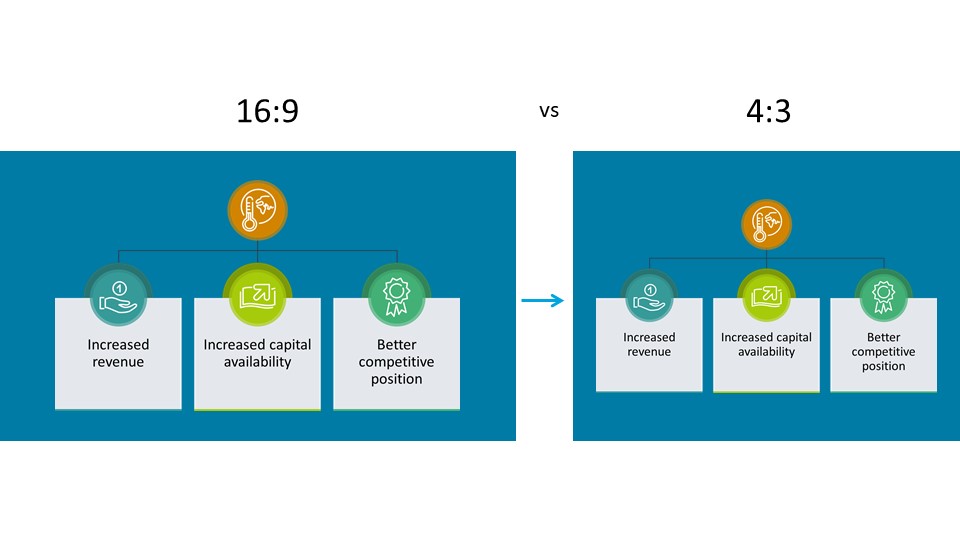
OK, so widescreen is prevailing now, but does 4:3 slide format has some advantages at all?
Standard 4:3 proportions works better when you present your slides on overhead projectors. I still see that the most standard projectors present in various conference rooms over hotels and smaller conference venues still use 4:3 proportions.
Another benefit of 4:3 format is printing. If you want also to print out your slides e.g. on A4 paper sheets, then 4:3 format will fit better than 16:9. And that covers both printing cases – whether you print one slide per paper sheet or printing more slides per sheet, e.g. 6 slides together – they still fit better inside A4 (or similar proportions) paper.
Let me sum it up:
Pros of widescreen 16:9 PPT slide format
- Better for presenting on laptop screens and wide TV displays
- Seemingly more space for graphics
- Modern (default format in new PPT)
Pros of standard 4:3 PPT slide format
- Better when using standard overhead projectors
- More suitable for printing out the presentation – you can fit them better so printed slides will be bigger and more readable.
How to change slide format in PowerPoint
Go to the Design tab → Slide Size → choose Standard (4:3), Widescreen (16:9), or Custom Slide Size. PowerPoint will ask whether to maximize content (which may crop) or scale to fit (which may leave gaps).
Important: Change slide size before you add content if you can. Changing an existing deck often distorts logos, stretches images, and breaks slide master layouts. If you must change a finished deck, work on a copy and budget time to fix the master slide manually — especially branded backgrounds and logo placements.
I am using here MS Office 365 but older Office versions have the same or very similar place where you can change the slide format.
Here are screenshots showing how to change format of a slide in PowerPoint, go to Design tab in the top menu, then choose Slide Size icon:
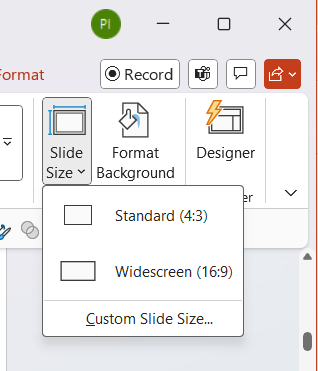
You will see two options Standard (4:3) and Widescreen (16:9). Choose the preferred format.
Switching format will pop up a window asking you how to fit existing slide content to new format – whether to fit everything in (making graphics smaller) or maximize the content look (some elements will be out of the slide region).
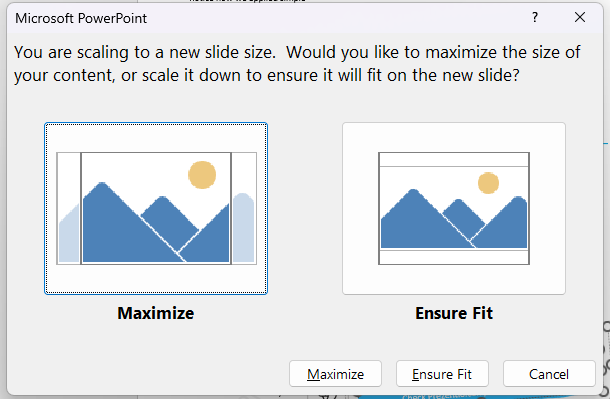
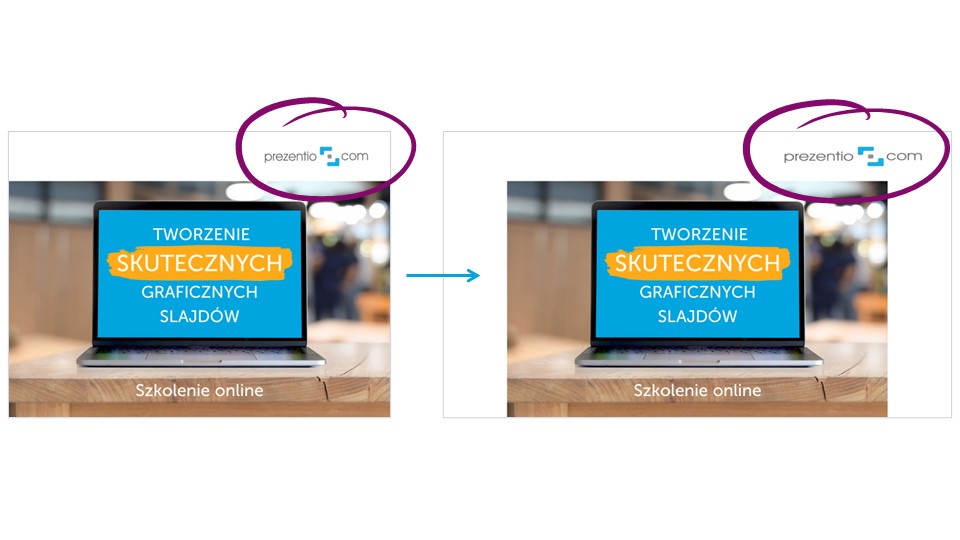
The resizing will change proportions of slide content elements correctly, but elements of the template (Slide master) can get stretched unnaturally. And people often have graphical elements in the template such as logo picture or other background graphics. In such a case you need to correct them manually. See example below with our logo stretched:
Another untypical slide formats and their use
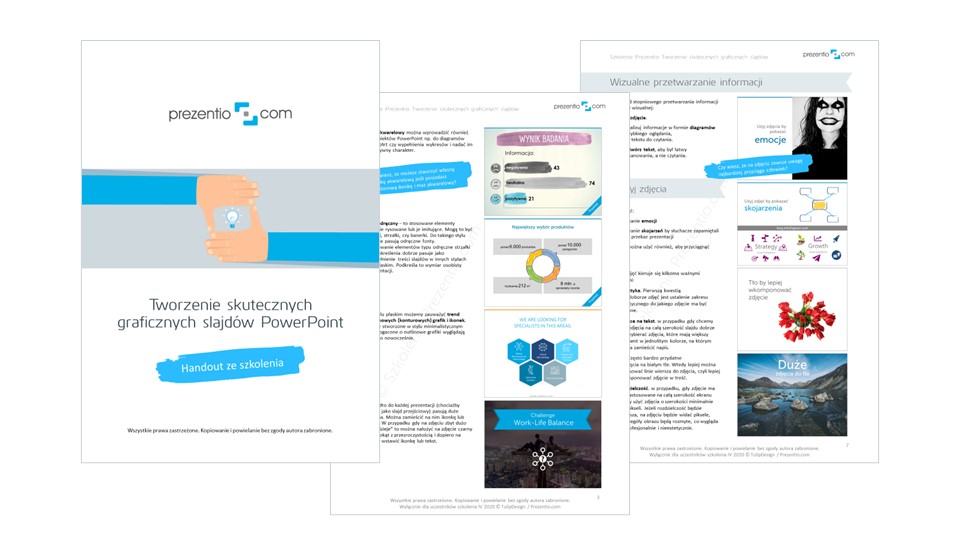
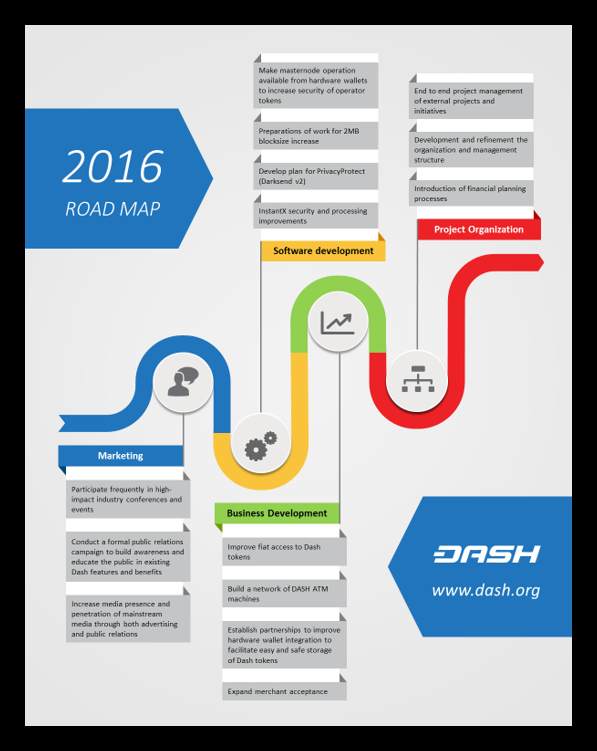
PowerPoint became the tool I use not only for presentations design but also for creating sales offers, training handouts, infographics, leaflets or one-pager documents. So for me the PowerPoint often replaces text editors such as Word, video editing apps or even Adobe Illustrator for making simple infographics.
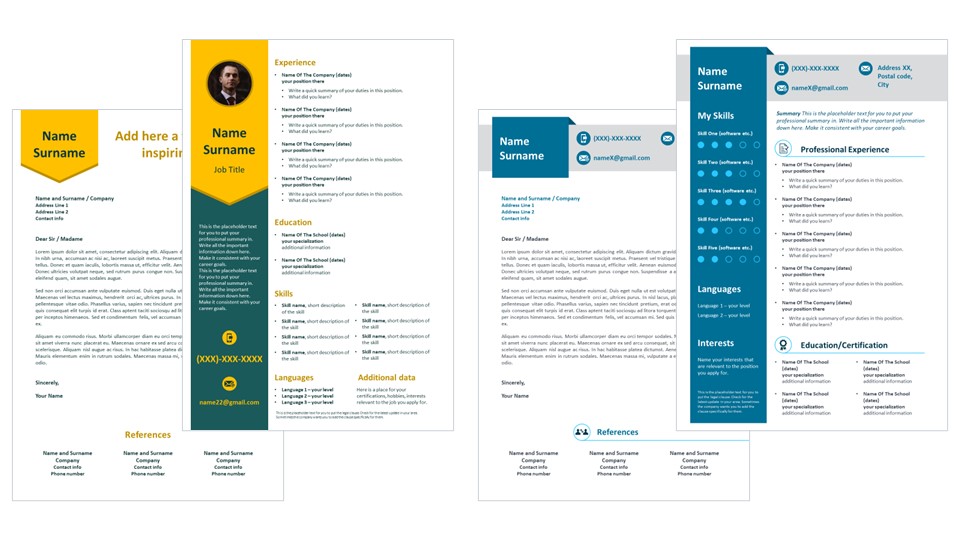
Did you know you can use it for making a nice visual job resume made solely in PowerPoint (link to our library of such CVs or see examples below)? Creating a resume for a job application in PowerPoint allows you to add graphics and control their position much easier than using Word.
For those alternative applications of PowerPoint I often change the slide format to less custom one.
Explore below document examples made in PowerPoint that used atypical slide format:


How to change PPT slide format to custom size?
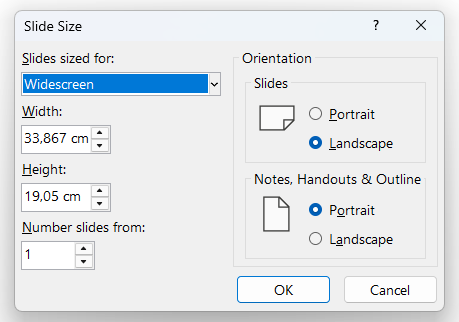
A few screenshots instruction how to create a PowerPoint slide with custom dimensions: Select from top menu the Design tab and there choose Slide Size icon. The last option there is Custom Slide Size….
This will open you a window where you can specify width and height of the slide or choose one of the predefined format instead of Widescreen, e.g. A4 or B5. You can also switch here the slide orientation to Portrait to create a slide looking like a Word document, for example.
PowerPoint as universal tool for visual documents
As you can see, PowerPoint can be really flexible tool you can use not only for slides. You can create any document where you want to use graphical elements, various layouts and have freedom of easy editing. Here are some ideas where you can try to use PowerPoint
- One-pagers that you can print out
- E-book design that you can later export as PDF document
- Marketing leaflets
- Simple infographics that you can save as PNG or JPG and publish on website
- Training handouts
- Short instruction documents with place for screenshots, flowcharts
- Writing a CV
- Diagram editor
- Creating a postcard design
- Social media graphics – e.g. simple banners
- Webpage drafts
Good luck getting creative.
Learn more tricks about advanced PowerPoint. Check our online training “Visual PPT Slides Design” content and calendar.
Peter,
Slide Designer, Trainer, Co-founder of Prezentio.
Follow me on my LinkedIn profile for data visualization examples and tips.